No code
The store connection is made when you install the app; you add nothing to your theme by hand.

HomeVisioner
This guide takes you from installing HomeVisioner from the ikas App Store to the first preview on your product page. You add no code to your theme; the “See it in your room” button places itself on the product page. Its default label follows your store's language – on Turkish stores it reads “Odanızda Görün”. If you get stuck anywhere, we set it up with you for free.
The store connection is made when you install the app; you add nothing to your theme by hand.
You choose in the panel which categories and products show the button, and its text, colour and position.
Open a chat from the panel's “Destek” (“Support”) page or write to [email protected].
The first time you open HomeVisioner from your ikas panel, a setup wizard opens. If you close it, “Kurulum sihirbazını aç” (“Open setup wizard”) on the “Genel Bakış” (“Overview”) page takes you back to where you left off. The HomeVisioner panel is in Turkish; labels are given here as the panel spells them, with a translation.
Open the “HomeVisioner: AI Oda Görselleştirici” page on the ikas App Store and install the app for your store. HomeVisioner opens inside your ikas panel.
The wizard's first step is the only required one: the address for your account, your invoices, your usage limit and service emails about the setup. News about new features is optional.
“Tüm ürünlerde aç” (“Enable on all products”) switches the button on for every product at once, or “Ürünleri seç” (“Select products”) lets you choose by category or product yourself. The button appears only on the products you enable.
The wizard checks three things: the store connection (the script is installed in your store, you need to add nothing to your theme by hand), that the button is enabled, and the first preview. Use “Mağazamı aç” (“Open my store”) to go to the page of a product you enabled, click “See it in your room” and upload a room photo. The preview is ready in seconds.
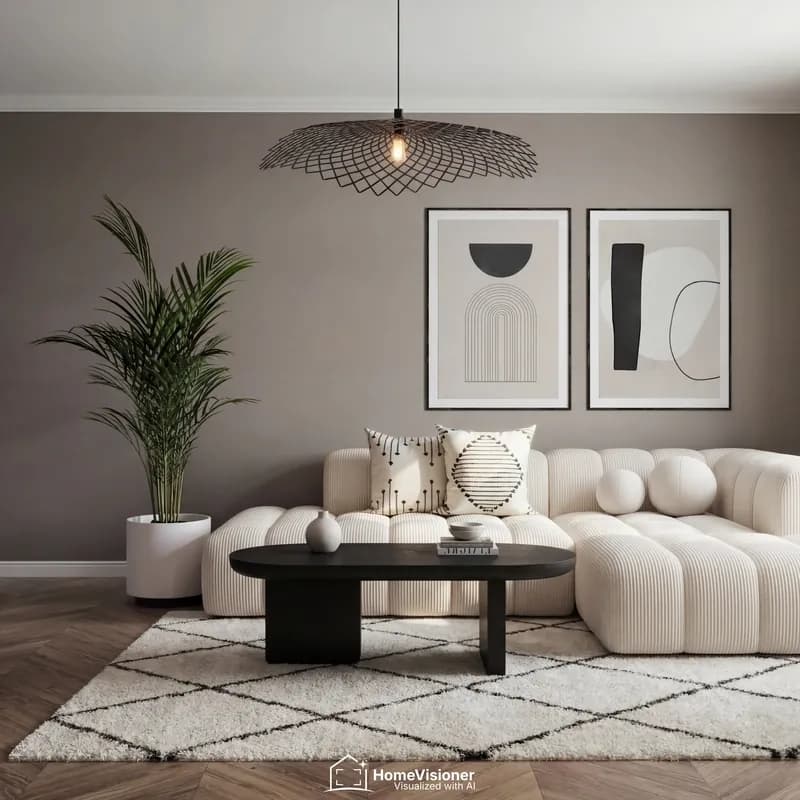
You can carry on with the Free plan (20 visualizations a month) or try Starter free for 14 days. The checkout page opens in a new tab; plans are billed in euro. A plan change only ever happens with your confirmation; you compare all plans on the “Faturalandırma” (“Billing”) page.
Under “Ayarlar” (“Settings”) → “Buton ve yerleşim” (“Button and placement”) you switch the button on or off in your store and change its text. The default text “Odanızda Görün” appears in your store's language, on English stores as “See it in your room”; a text of your own shows exactly as you write it. Under “Buton görünümü” (“Button appearance”) you pick one of 7 ready-made styles or set the colours yourself; a live preview shows the changes before you save.
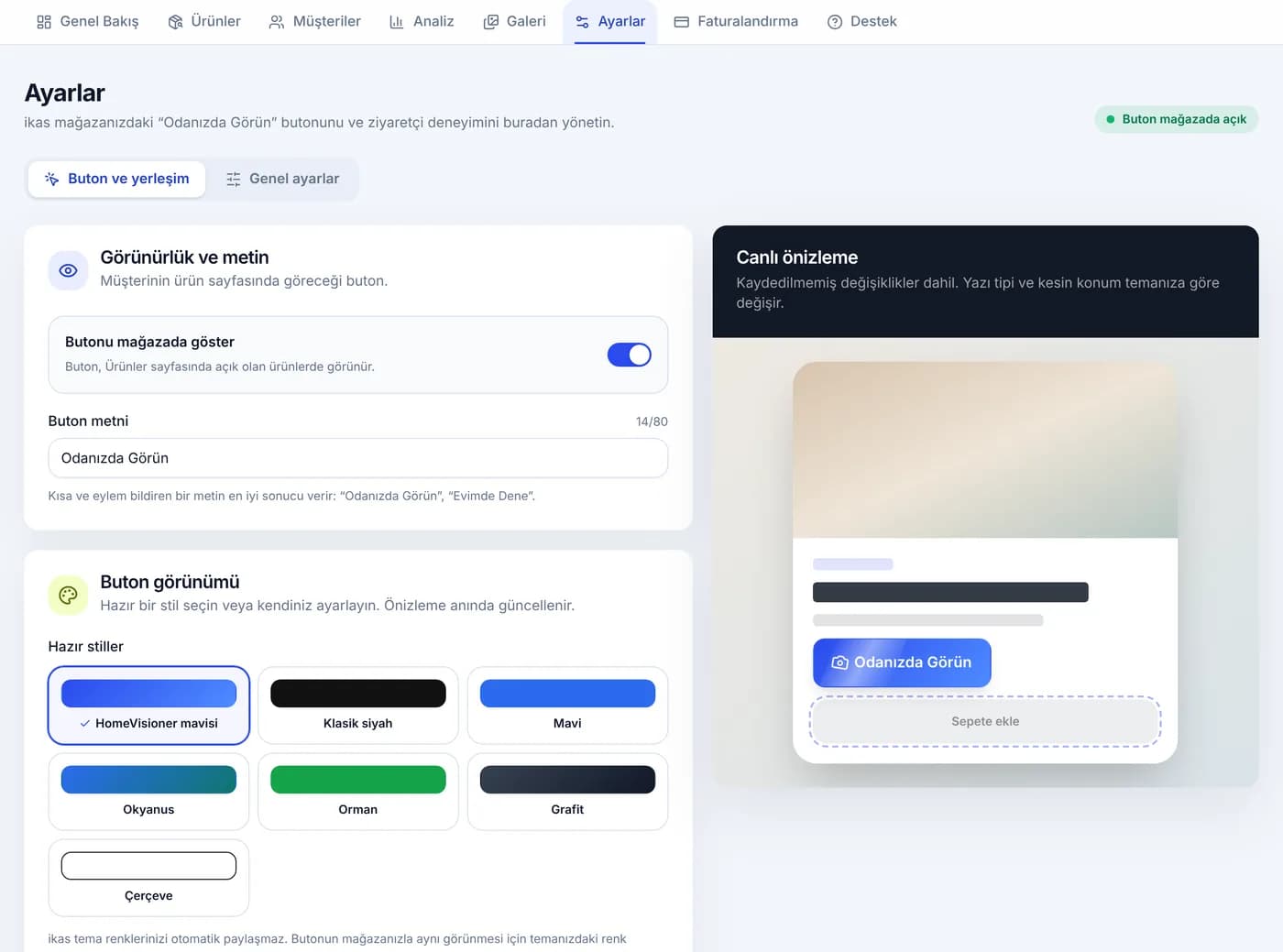
By default the position is automatic: the button sits next to the Add to cart button, and you choose above or below it. If you prefer, you can use a fixed button in the bottom right corner instead.
In the “Ürünleriniz neyi kapsıyor?” (“What do your products cover?”) section of “Ayarlar” you choose the default mode. On automatic, each product is visualized according to its category: furniture and decor, rug, flooring or wall covering. You change a single product's mode on the “Ürünler” (“Products”) page.
When visitors are asked for their email and how many images they can create per day is set in the “E-posta ve günlük sınır” (“Email and daily limit”) section of “Ayarlar”. Marketing consent is collected with a separate, unticked box. The leads collected appear on the “Müşteriler” (“Customers”) page and can be downloaded as CSV.
The quality of the preview depends most on the room photo. You can add these tips to your product description or FAQ.
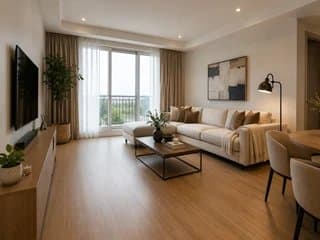
What works
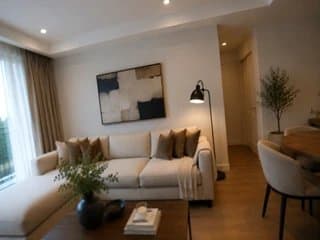
Better avoid
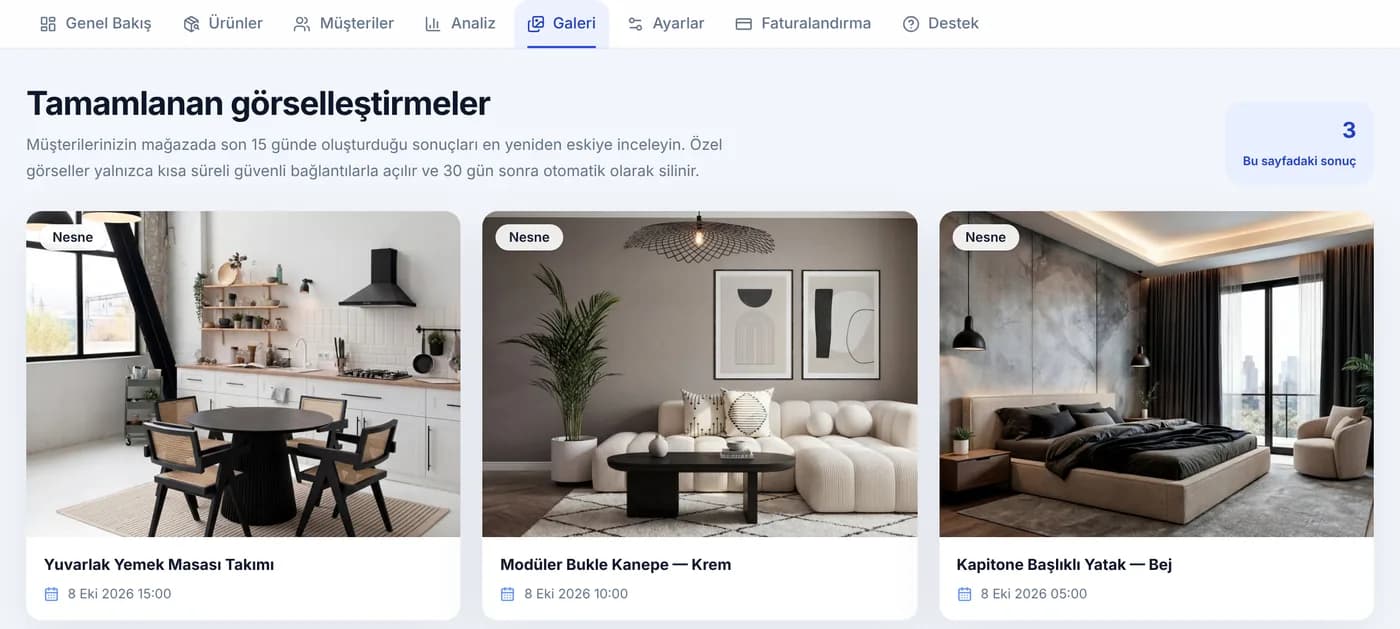
“Galeri” (“Gallery”) shows the results created in your store, newest first; the panel shows the last 15 days' results (Starter, Growth and Pro). Photos are deleted automatically after 30 days. The “Analiz” (“Analytics”) screen shows visualizations, email sign-ups, attributed orders and attributed revenue; refunded and cancelled orders are not deducted from revenue, their amount and count are shown separately.
Check in this order:
No. When you install the app, the script is installed in your store and the button places itself next to Add to cart.
Yes. On the “Ürünler” page you switch it on or off per category or product; bulk actions switch them all on at once too.
No. HomeVisioner uses the product images already in your store; no 3D model is needed.
20 visualizations a month, a customizable button, lead capture and basic analytics. Results carry a HomeVisioner watermark.
Yes, setup support is free. Open a chat from the panel's “Destek” page or write to [email protected]; we set the button's position and look together with you.
Shoppers see furniture in their room before buying. This builds confidence and can reduce ecommerce returns.
Visualize products photorealistically in your own room: upload a room photo, add a product, and get a preview in seconds.
Two ways to show furniture and décor in a shopper's room: an AI preview built from product photos, or 3D models with AR. Use, cost structure and limits.