
Room visualization for rug stores Your rugs in your customers’ rooms, before they buy.
HomeVisioner adds a “See it in your room” button to your rug pages. Shoppers upload a photo of their room and see the rug in it in seconds — made from the product photos you already have. For Shopify and ikas.
Free plan on both platforms · free setup support
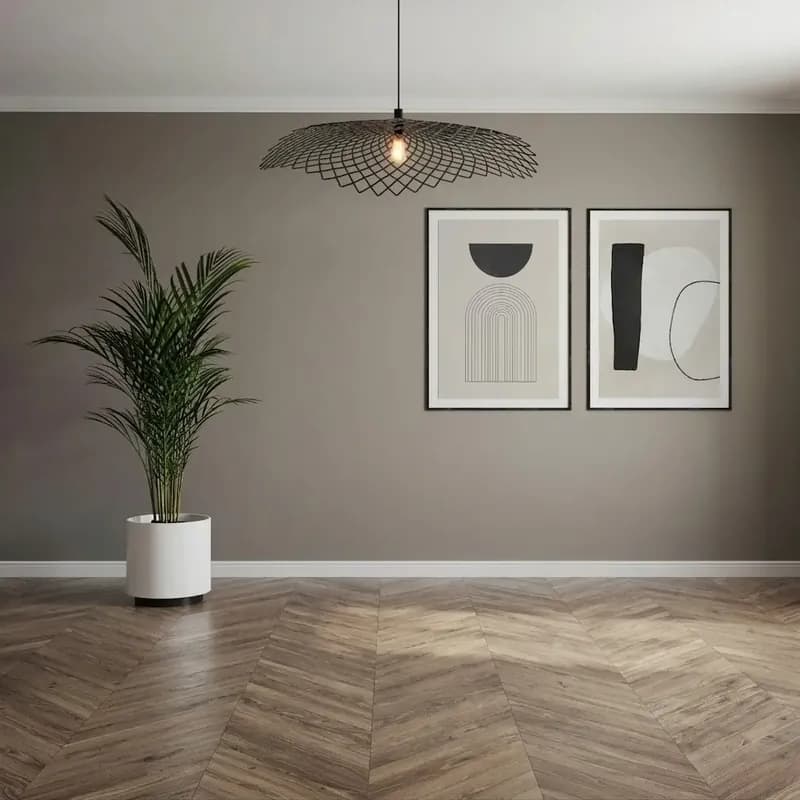 Before
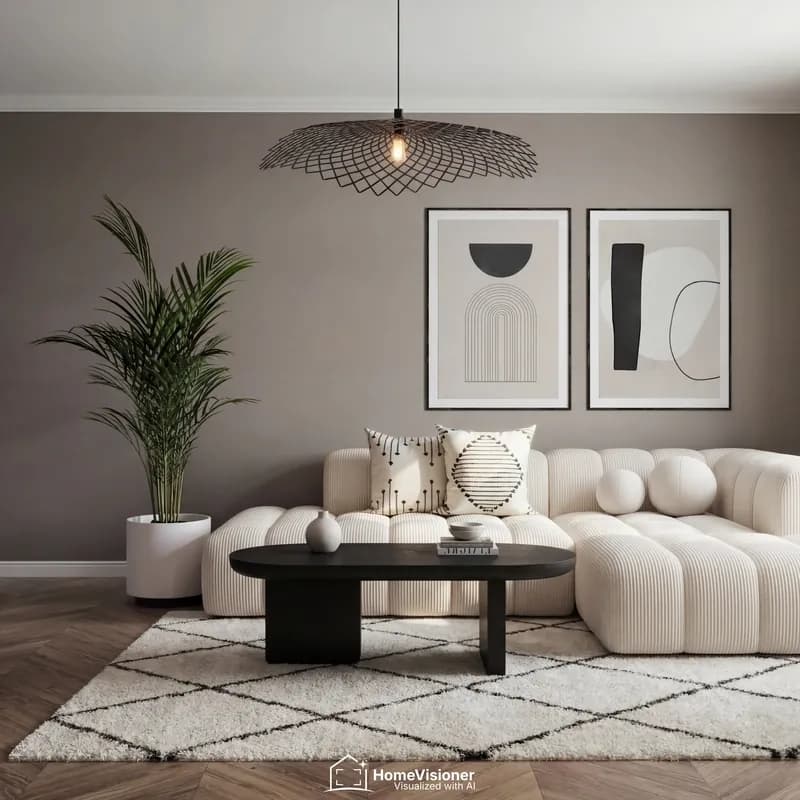 After
AfterWhat the preview keeps from your rug
The visualizer works from your product photo, not from the description. These are the rules it follows for rugs — and where an AI image has limits.
Outline, border and pattern
The AI is instructed to keep the rug’s outline, aspect ratio, border, edges, texture, pattern and colours as your photo shows them. If the product text and the photo disagree, the photo wins.
Fringe only where the photo shows it
Clearly visible fringe or tassels are kept. Fringe the photo doesn’t show is not added.
In the light of the room
Perspective, lighting and shadows are matched to the room, and the rug can sit under furniture. Colours therefore look the way they would in that room’s light — not like a calibrated colour swatch.
Still an AI image
Fine details can come out differently from the original. If a result looks off, the shopper can try again or use another room photo. Treat it as a buying aid, not as a product photo.
Which product photo works best
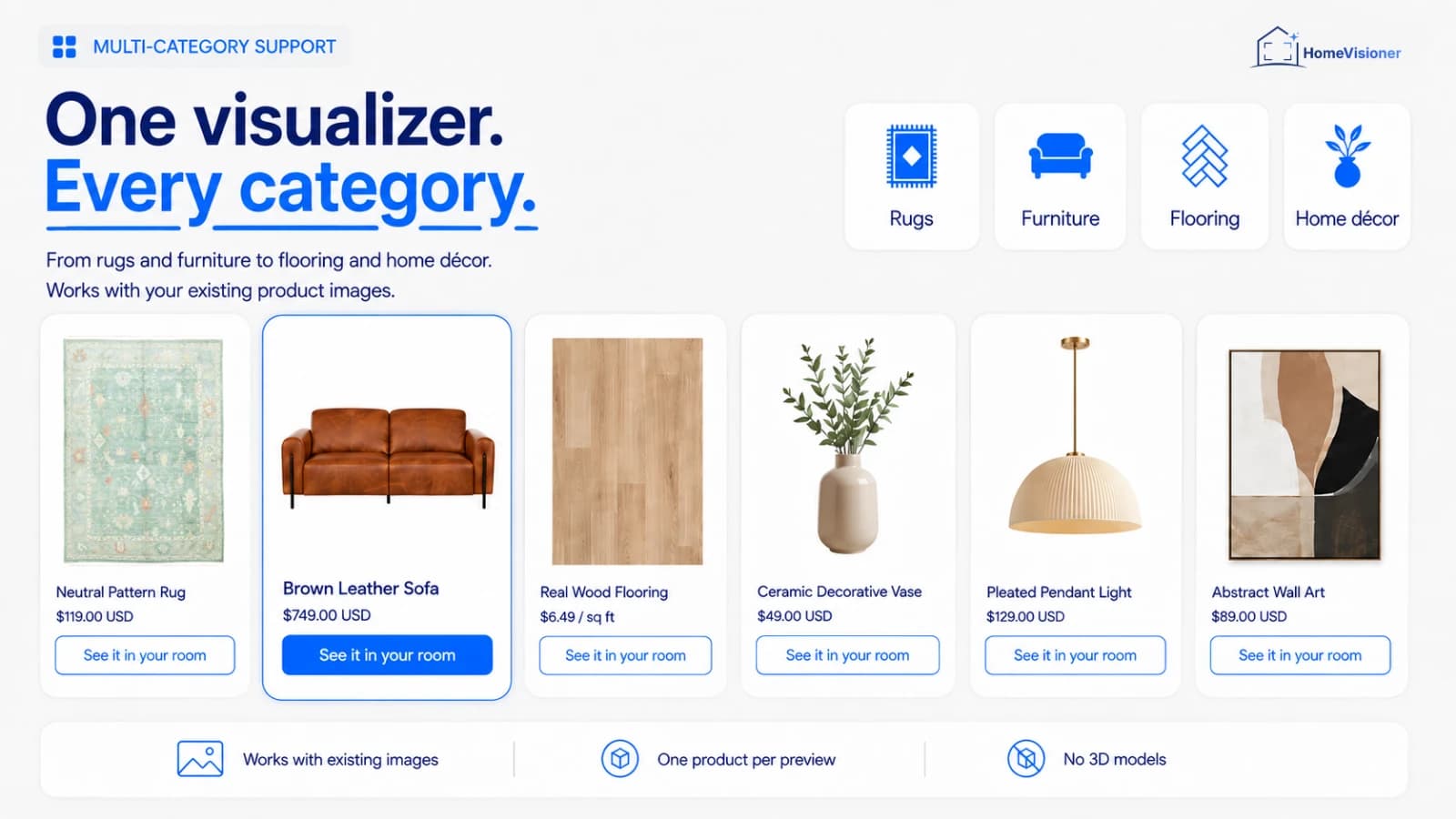
No 3D model and no new shoot: the app uses the images already on your product.
Best: the whole rug, flat
All four edges in the frame, shot straight on, on a plain background. That is where the AI reads the outline, proportions, border and pattern from.
A room shot as the main image
A styled room photo makes the job harder: the AI first has to find the rug inside another room, and the perspective distorts its proportions. Make the flat shot the image the app uses.
Shopify: which image is used
The selected variant’s own image; without one, the image at the position set in the app block (the first by default). A second product image can be sent along as another view of the same rug.
ikas: which image is used
The main image of the selected variant; if it has none, another variant’s. Set your flat shot as the main image.
The room photo has to show the floor
The Shopify widget shows shoppers these two examples when they upload. The difference: how much floor is visible.


- Wide angle, phone held horizontally
- The floor where the rug should go is in the picture
- Good light; open, tidy rooms work best
- No people: photos with a clearly visible face are not processed
A preview, not a measuring tool
A single room photo contains no real measurements. The AI estimates size from what it sees in the room — door frames, furniture — so the rug’s size in the preview is an approximation.
On Shopify, when the selected variant has a size such as “200 × 300 cm”, it is passed along as an approximate reference — unit and order exactly as you wrote them, nothing converted or guessed.
Your size details and a tape measure still decide the right size. Every result says so too:
“This is an AI preview. The product’s scale and proportions are illustrative only.”
Rugs in furnished rooms
The room photo before, the HomeVisioner preview after. Drag the slider to compare.
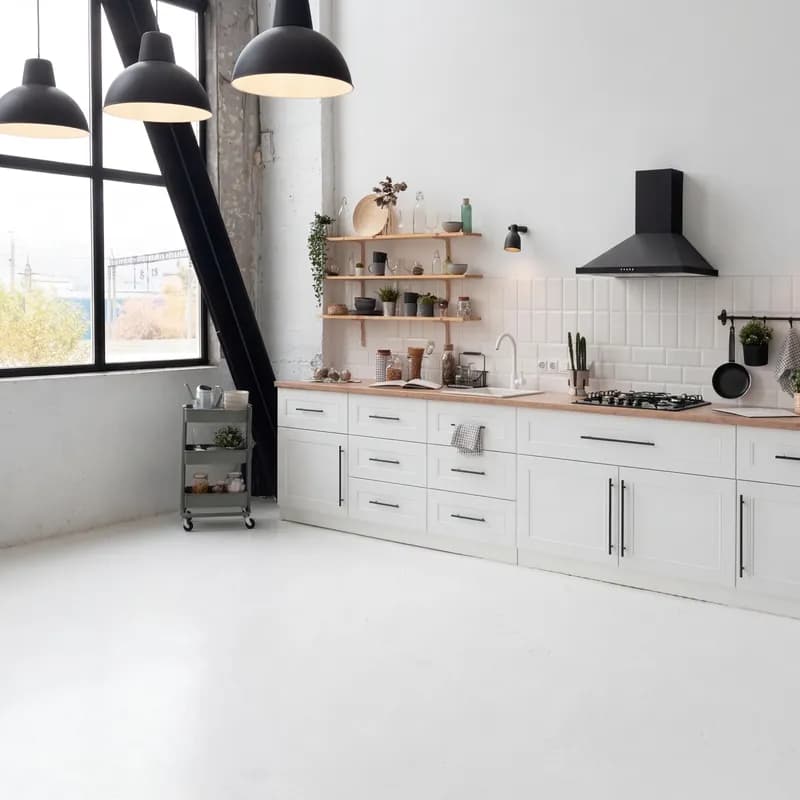 Before
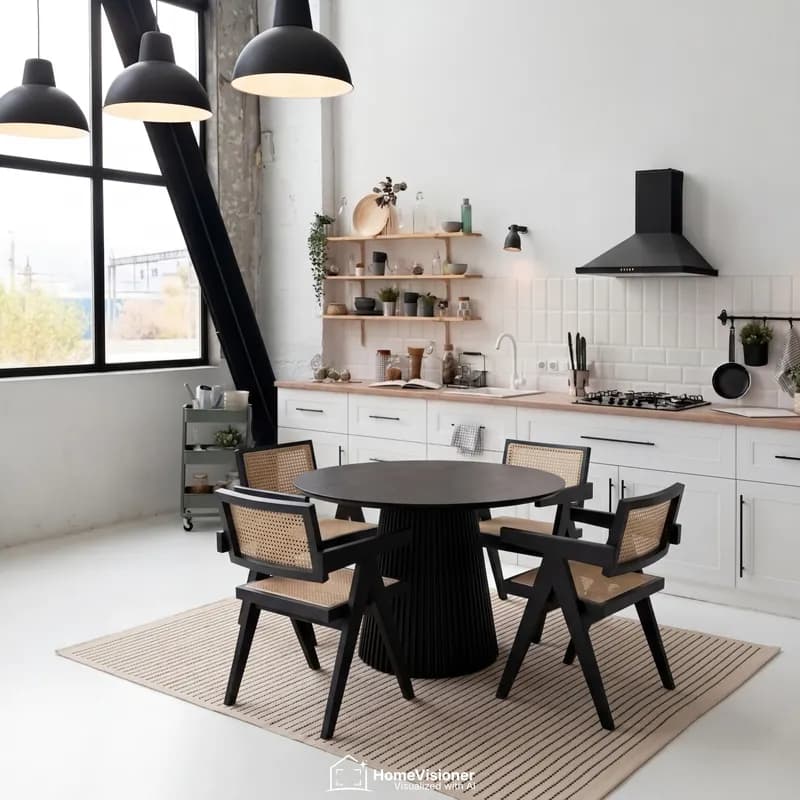 After
After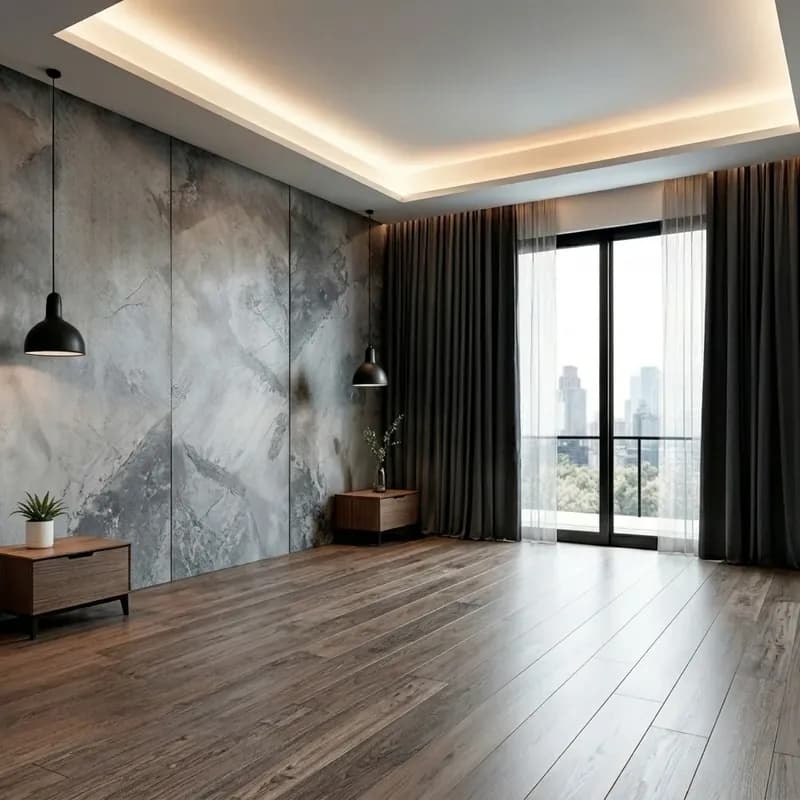 Before
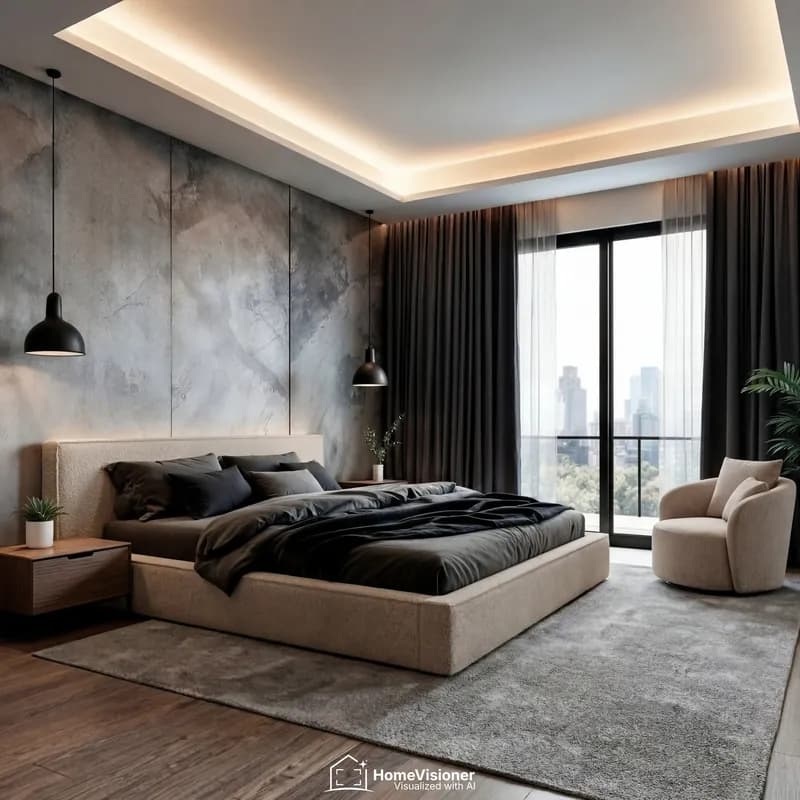 After
AfterExample images from a demo store.
Set up in minutes, no code
Rugs use the object mode: they are laid on the existing floor. Floor coverings such as fitted carpet have their own mode, which replaces the whole floor.
Shopify
- 1Install HomeVisioner from the Shopify App Store.
- 2Drag the HomeVisioner block into your product template in the Theme Editor.
- 3Under “Product types”, choose “Objects & rugs”.
- 4In “Manage catalog”, switch the button on for your rug collections or single products.
ikas
- 1Install HomeVisioner from the ikas App Store.
- 2The button places itself next to “Sepete ekle” — no theme edit.
- 3Use the “Nesne / mobilya” (object) mode for rugs.
- 4In the “Ürünler” tab, switch the button on per category or per product.
Setup support is free: [email protected].
What you can measure
The app’s analytics count what happens around the button. They show an association — not proof that the preview caused the sale.
Visualizations
Every completed preview.
Leads
After a few previews, shoppers can leave their email to keep going; marketing consent is a separate checkbox. Export as CSV.
Attributed orders and revenue
Orders that follow a visualization and are linked to it through the cart or the shopper’s email.
Start free
Prices and quotas as on each platform. The platform pages have every plan in detail.
Shopify
- Free: 20 visualizations a month
- Paid plans from $14.99 / month (Starter: 100 visualizations, 14-day free trial)
- Billed by Shopify in USD
ikas
- Free: 20 visualizations a month
- Paid plans from €24.99 / month (Starter: 100 visualizations, 14-day free trial)
- Billed in euro
Questions rug stores ask
Further reading
Show your rugs where they will lie.
Start free on Shopify or ikas. Setup support is free.