HomeVisioner Blog
The “See it in your room” button in your ikas store: what to expect in the first 30 days
Updated:
Your first 30 days with HomeVisioner on ikas: setup, the first previews, what the admin panel shows you and what to look at on day 30.
Day one: setup without code
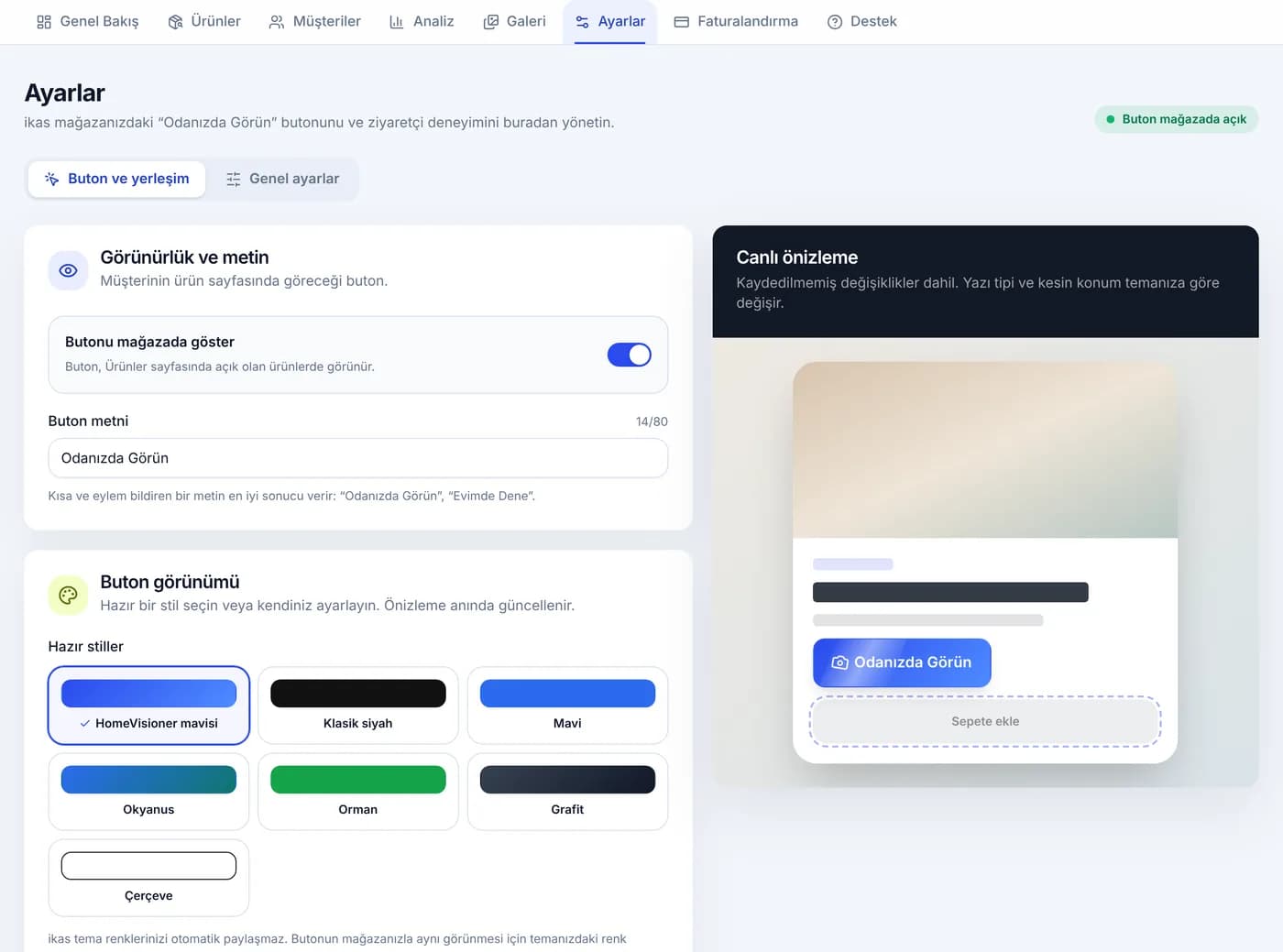
Once you install HomeVisioner from the ikas App Store, the app opens inside your ikas admin panel and a setup wizard starts. You don’t add any code to your theme: the store connection is made when the app is installed, and the “Odanızda Görün” button places itself next to “Add to cart” on your product pages. The button speaks your store’s language: in an English-language store it reads “See it in your room”.
The only required step in the wizard is your contact email. After that, you turn the button on for every product with “Tüm ürünlerde aç” (Turn on for all products), or only for certain categories and products with “Ürünleri seç” (Select products). For the first month we recommend the second option: start with one or two categories where a preview helps most — furniture, rugs or flooring, the products where shoppers ask “how would this look in my home?”
A step-by-step walkthrough with screenshots is in our ikas setup guide. In the wizard’s last step you open your store, click the button on a product page and upload a photo of your own room; the preview is ready within seconds. Don’t skip this first test: it lets you see once, for yourself, exactly what your shoppers will see.
Week one: the first previews and the first emails
The free plan includes 20 visualizations a month, and results carry a HomeVisioner watermark. In a store with a lot of traffic, that allowance can run out within the first week. The Starter plan includes 100 visualizations for €24.99 a month and comes with a 14-day free trial. When the allowance is used up, the button is hidden; you can keep an eye on this on the “Faturalandırma” (Billing) page.
In Settings — “Ayarlar” in the panel — the “E-posta ve günlük sınır” (Email and daily limit) section lets you decide when visitors are asked for their email and how many images one person can create per day. Marketing consent is collected with a separate checkbox that is not ticked in advance. Emails that shoppers leave appear as leads on the “Müşteriler” (Customers) page and can be downloaded as a CSV.
The most instructive screen in week one is the Gallery — “Galeri” in the panel (Starter, Growth and Pro). It shows the results your shoppers created, newest first; the panel keeps results from the last 15 days, and photos are deleted automatically after 30 days. Look at which products were tried and which photos gave good results: dark room photos, or ones taken too close up, make the result noticeably worse.
Weeks two and three: reading the Analytics screen correctly
The Analytics screen — “Analiz” in the panel — counts three things over 7-, 30- or 90-day periods: completed visualizations, email sign-ups, and attributed orders with their revenue. On ikas, an order is attributed in one of two ways: a visualization was completed or an email was left in the order’s cart no more than 30 days before, or the order’s email address matches an email left within the last 7 days. HomeVisioner reads orders regularly, at most every 15 minutes.
Cancelled and refunded orders are not deducted from attributed revenue or the order count; the panel shows their amount and number separately. So don’t expect a refund to disappear from the panel; it shows up on a separate line.
An important caution: an attributed order is not proof that the preview made the sale. A shopper who uses the preview may already be closer to buying. You can find exactly how the figures are counted on the page that explains how we measure.
What do the numbers look like in other stores?
The HomeVisioner network totals have been counted across all stores on Shopify and ikas since June 2026. As of 21 October 2026, they stand at 9,800+ completed visualizations, a 98% success rate, 1,100+ emails left and 500+ attributed orders. Rounded, attributed orders come to 5% of visualizations.
Don’t read these figures as a target or a promise for your own store. They are totals from stores in different categories, at different price levels and with different traffic volumes. In your store the rate may turn out higher or lower. The real purpose of the first 30 days is to find your own baseline.
Day 30: what to look at and what to decide
At the end of the month, look for answers to three questions. First: on the products where the button is on, is the number of visualizations reasonable compared with how often those products are viewed? If it is very low, review the button’s placement and wording; Settings offers seven ready-made styles and drag-and-drop placement with “Mağazamda yerini seç” (Choose its place in my store).
Second: which products give good results? Previews usually turn out better when the product photo shows the whole product against a plain background. On ikas, the main image of the variant the shopper selected is used; for products with weak results, changing the main image is often enough.
Third: should you widen the scope? If the first category went well, turn the button on for similar categories. You can see which products stand out for furniture stores on our page for furniture stores, and every plan and feature on the HomeVisioner for ikas page. If you need more visualizations, Growth includes 300 for €74.99 a month. Setup support is free; if you get stuck, write to us from the “Destek” (Support) page in the panel.
Try HomeVisioner in your ikas store
You can start on the free plan: setup needs no code, the button is on your product pages on day one, and setup support is free.